Use meeting policies to control the features that are available to
meeting participants for meetings that are scheduled by users in your
organization. You can use the global (Org-wide default) policy that's
automatically created or create and assign custom policies. You manage
meeting policies in the Microsoft Teams admin center or by using PowerShell.
Uwaga
For information about using roles to manage the permissions of meeting presenters and attendees, see Roles in a Teams meeting.
You can implement policies in the following ways, which affect the
meeting experience for users before a meeting starts, during a meeting,
or after a meeting.
Tabela 1
Implementation type
Description
Per-organizer
When you implement a per-organizer policy, all meeting participants inherit the policy of the organizer. For example, Automatically admit people
is a per-organizer policy. It controls whether users join the meeting
directly or wait in the lobby for meetings scheduled by the user who is
assigned the policy.
Per-user
When you implement a per-user policy, only the per-user policy
applies to restrict certain features for the organizer and/or meeting
participants. For example, Allow Meet now in channels is a per-user policy.
Per-organizer and per-user
When you implement a combination of a per-organizer and per-user
policy, certain features are restricted for meeting participants based
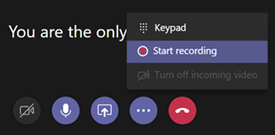
on their policy and the organizer's policy. For example, Allow cloud recording is a per-organizer and per-user policy. Turn on this setting to allow users to start and stop a recording.
You can edit the settings in the global policy or create and assign
one or more custom policies. Users will get the global policy unless you
create and assign a custom policy.
Uwaga
Meeting details button will be available if a user has the audio
conference licenses enabled or the user is allow for audio conferencing,
if not, the meeting details will not be available.
Create a custom meeting policy
In the left navigation of the Microsoft Teams admin center, go to Meetings > Meeting policies.
Select Add.
Enter a name and description for the policy. The name can't contain special characters or be longer than 64 characters.
Choose the settings that you want.
Select Save.
For example, say you have a bunch of users and you want to limit the
amount of bandwidth that their meeting would require. You would create a
new custom policy named "Limited bandwidth" and disable the following
settings:
Under Audio & video:
Turn off Allow cloud recording.
Turn off Allow IP video.
Under Content sharing:
Disable screen sharing mode.
Turn off Allow whiteboard.
Turn off Allow shared notes.
Then assign the policy to the users.
Edit a meeting policy
You can edit the global policy and any custom policies that you create.
In the left navigation of the Microsoft Teams admin center, go to Meetings > Meeting policies.
Select the policy by clicking to the left of the policy name, and then select Edit.
From here, make the changes that you want.
Select Save.
Uwaga
A user can be assigned only one meeting policy at a time.
Assign a meeting policy to users
You can assign a policy directly to users, either individually or at
scale through a batch assignment (if supported for the policy type), or
to a group that the users are members of (if supported for the policy
type).
You can't delete a policy if users are assigned to it. You must first
assign a different policy to all affected users, and then you can
delete the original policy.
Meeting policy settings
Select an existing policy on the Meeting policies page or select Add to add a new policy. Configure settings for the following.
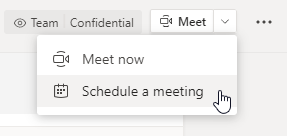
Allow Meet now is a per-user policy and applies
before a meeting starts. This setting controls whether a user can start
an unplanned meeting in a Teams channel. If you turn on this setting,
users can select the Meet button to start an unplanned meeting or schedule a meeting in the channel. The default value is True.
Allow the Outlook add-in
Allow the Outlook add-in is a per-user policy and applies before a
meeting starts. This setting controls whether Teams meetings can be
scheduled from within Outlook (Windows, Mac, web, and mobile).
If you turn off this feature, users are unable to schedule. Teams
meetings when they create a new meeting in Outlook. For example, in
Outlook on Windows, the New Teams Meeting option won't show up in the ribbon.
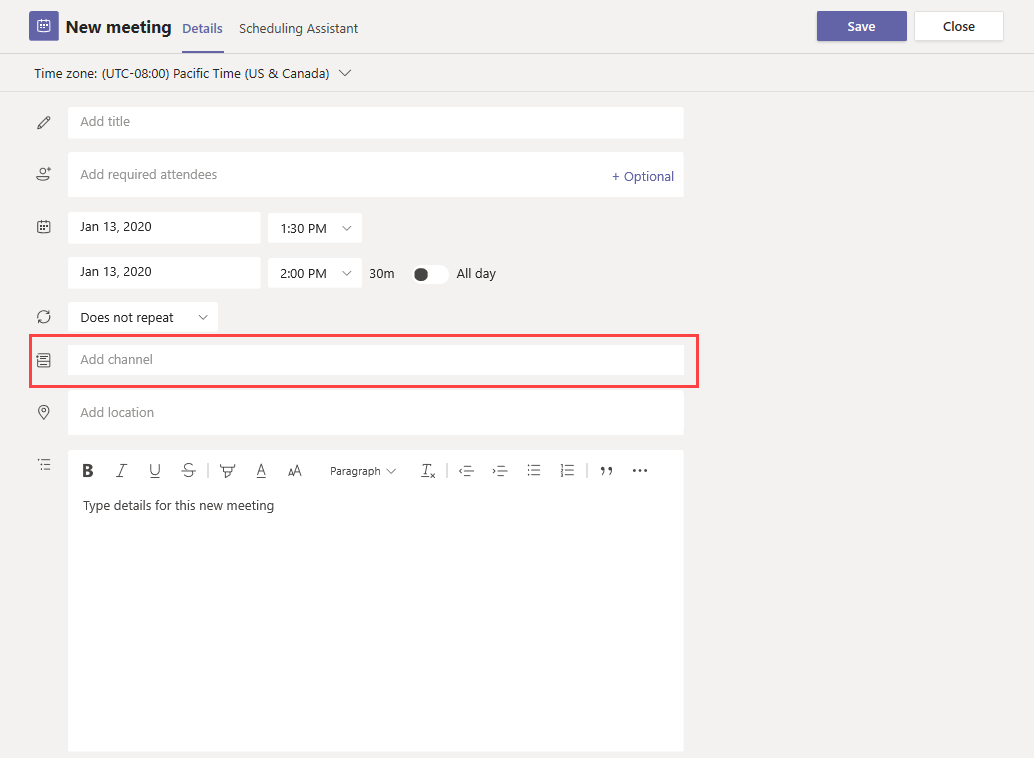
Allow channel meeting scheduling
Use the existing AllowChannelMeetingScheduling policy to control the
types of events that can be created on the team channel calendars. This
is a per-user policy and applies before a meeting starts. This setting
controls whether users can schedule a meeting in a Teams channel. By
default, this setting is turned on.
If this policy is turned off, users can't create new channel
meetings. However, existing channel meetings can be edited by the
organizer of the event.
Schedule a meeting will be disabled.
Channel selection is disabled.
In the channel posts page, the following features will be disabled:
Schedule a meeting button on the channel reply compose box.
Schedule a meeting button on the channel header.
In the channel calendar:
Add new event button on channel calendar header will be disabled.
Users can't drag and select a time block on the channel calendar to create a channel meeting.
Users can't use Keyboard shortcuts to create a meeting on the channel calendar.
In the admin center:
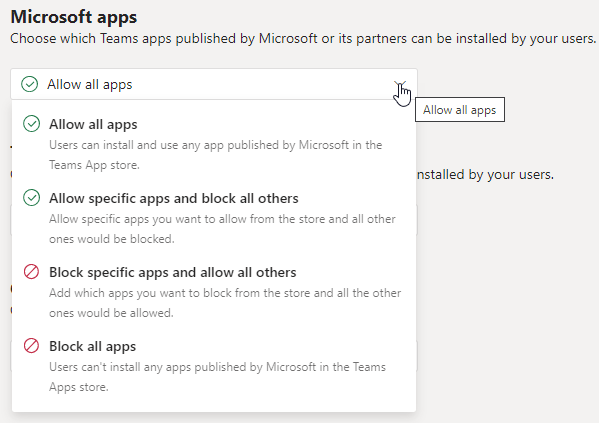
The channel calendar app will show up in the Microsoft apps section on the app permission policies page.
Allow scheduling private meetings
Scheduling private meetings is a per-user policy and applies before a
meeting starts. This setting controls whether users can schedule
private meetings in Teams. A meeting is private when it's not published
to a channel in a team.
If you turn off Allow scheduling private meetings and Allow channel meeting scheduling, the Add required attendees and Add channel options are disabled for users in Teams. By default, this setting is turned on.
Allow Meet now in private meetings
This is a per-user policy and applies before a meeting starts. This
setting controls whether a user can start an unplanned private meeting.
By default, this setting is turned on.
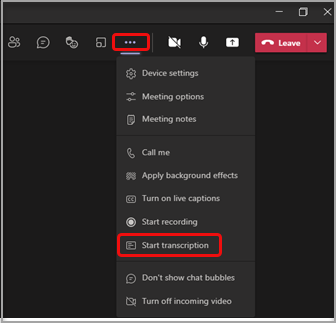
This policy turns on Live transcription. Allow transcription is a
per-user policy. This setting controls whether this specific Team's
meeting can be transcribed.
Live transcription shows speech-to-text of spoken content during a
Teams meeting in near real time. The text appears alongside the meeting
video, including the speaker's name and a time stamp. To learn more, see
View live transcription in a Teams meeting.
Currently, live transcription is supported on the Teams desktop
client. Transcription is supported for spoken U.S. English. The
transcript is available after the meeting on Teams desktop or web.
Here's how the Allow transcription and Allow cloud recording policy settings work together. The following table describes the values for these settings and the meeting behavior.
Tabela 2
Allow transcription
Allow cloud recording
Behavior
On
On
The Start transcription option is available in Teams meetings. The meeting organizer or meeting participants can start and stop transcription. The Start recording option is available in Teams meetings. The meeting organizer or meeting participants can start and stop recording.
On
Off
The Start transcription option is available in Teams meetings. The Start recording option isn't available in Teams meetings.
Off
On
The Start recording option is available in Teams meetings. The Start transcription option isn't available in Teams meetings.
Off
Off
Recording and transcription aren't available in Teams meetings.
Allow cloud recording
Allow cloud recording is controlled at a per-user policy. This
setting controls whether a user can record. The recording can be started
by the meeting organizer or by another meeting participant if their
specific policy setting is turned on and if they're an authenticated
user from the same organization as the organizer.
People outside your organization, such as federated and anonymous
users, can't start the recording. Guest users can't start or stop the
recording.
Mode for IP audio is a per-user policy. This setting controls whether
audio can be turned on in meetings and group calls. Here are the values
for this setting.
Mode for IP audio
Setting value
Behavior
Outgoing and incoming audio enabled
Outgoing and incoming audio is allowed in the meeting. This is the default setting.
Disabled
Outgoing and incoming audio is turned off in the meeting.
If set to Disabled for a user, that user can still
schedule and organize meetings but can't use audio. To join a meeting,
the user has to dial in through the Public Switched Telephone Network
(PSTN) or have the meeting call to join the user by phone. Meeting
participants who don't have any policies assigned (for example,
anonymous participants) have this set to Outgoing and incoming audio enabled by default. On Teams mobile clients, if this setting is disabled, the user has to dial in to the meeting through the PSTN.
This setting doesn't apply to 1:1 calls. To restrict 1:1 calls, configure a Teams calling policy and turn off the Make private calls setting. This setting also doesn't apply to conference room devices such as Surface Hub and Microsoft Teams Rooms devices.
This setting isn't yet available for Microsoft 365 Government
Community Cloud (GCC), GCC High, or Department of Defense (DoD)
environments.
Mode for IP video is a per-user policy. This setting controls whether
video can be turned on in meetings and group calls. Here are the values
for this setting.
Mode for IP video
Setting value
Behavior
Outgoing and incoming video enabled
Outgoing and incoming video is allowed in the meeting is the default setting.
Disabled
Outgoing and incoming video is turned off in the meeting. On Teams
mobile clients, users can't share videos or photos in the meeting.
If Mode for IP audio is disabled, then Mode for IP video will also remain disabled.
If set to Disabled for a user, that user can't turn
on video or view videos shared by other meeting participants. Meeting
participants who don't have any policies assigned (for example,
anonymous participants) have this set to Outgoing and incoming video enabled by default.
This setting doesn't apply to conference room devices such as Surface Hub and Microsoft Teams Rooms devices.
This setting isn't yet available for Microsoft 365 Government
Community Cloud (GCC), GCC High, or Department of Defense (DoD)
environments.
Allow IP video is a combination of a per-organizer and per-user
policy. Video is a key component to meetings. In some organizations,
admins might want more control over which users' meetings have video.
This setting controls whether video can be turned on in meetings hosted
by a user and in 1:1 and group calls started by a user. On Teams mobile
clients, this setting control whether users can share photos and videos
in a meeting.
Meetings organized by a user who has this policy setting enabled,
allow video sharing in the meeting by the meeting participants, if the
participants also have the policy setting enabled. Meeting participants
who don't have any policies assigned (for example, anonymous and
federated participants) inherit the policy of the meeting organizer.
Meetings hosted by Daniela allow video to be turned on. Daniela can
join the meeting and turn on video. Amanda can't turn on video in
Daniela's meeting, because Amanda's policy is set to not allow video.
Amanda can see videos shared by other participants in the meeting.
In meetings hosted by Amanda, no one can turn on video, regardless of
the video policy assigned to them. This means Daniela can't turn on
video in Amanda's meetings.
If Daniela calls Amanda with video on, Amanda can answer the call
with audio only. When the call is connected, Amanda can see Daniela's
video, but can't turn on video. If Amanda calls Daniela, Daniela can
answer the call with video and audio. When the call is connected,
Daniela can turn on or turn off her video, as needed.
For a user, the most restrictive policy setting for video takes precedence. Here's some examples.
Which IP video policy setting takes precedence
Allow IP video
Mode for IP video
Meeting experience
Organizer: On
Participant: On
Participant: Disabled
The Mode for IP video setting takes precedence. The participant who is assigned this policy can't turn on or view videos shared by others.
Organizer: On
Participant: On
Participant: Outgoing and incoming video enabled
The participant who is assigned this policy can turn on or view videos shared by others.
Organizer: On
Participant: Off
Participant: Outgoing and incoming video enabled
The Allow IP video setting takes precedence. Participants can only see incoming video and can't send outgoing video.
Organizer: On
Participant: Off
Participant: Disabled
The Mode for IP video setting takes precedence. The participant can't see incoming or outgoing video.
Organizer: Off
The Allow IP video setting takes precedence because
it's turned off for the organizer. No one can turn on video in meetings
organized by the user who is assigned this policy.
Manage audio/video for meeting participants
Manage audio/video for meeting participants
If you want to...
Set the following policy settings
Disable audio and video for participants in meetings
Mode for IP audio: Disabled Mode for IP video: Disabled Allow IP video: N/A
Enable only incoming video and audio for participants in meetings
Mode for IP audio: Outgoing and incoming audio enabled Mode for IP video: Outgoing and incoming video enabled Allow IP video: Off
Disable video for participants in meetings (participants have audio only)
Mode for IP audio: Enable outgoing and incoming audio Mode for IP video: Disabled Allow IP video: N/A
Enable audio and video for participants in meetings
Mode for IP audio: Outgoing and incoming audio enabled (default) Mode for IP video: Outgoing and incoming video enabled (default) Allow IP video: On (default)
The most restrictive policy between the meeting organizer’s policy
and the user’s policy applies. For example, if an organizer has a policy
that restricts video and a user’s policy doesn't restrict video,
meeting participants inherit the policy of the meeting organizer and
don't have access to video in meetings. This means that they can join
the meeting with audio only.
Uwaga
When a user starts a group call to join by phone, the Use phone for audio screen doesn't appear. This is a known issue that we're working to resolve. To work around this issue, select Phone audio under Other join options.
Teams mobile clients
For users on Teams mobile clients, the ability to share photos and videos during a meeting is determined by the Allow IP video or IP video mode
setting. Depending on which policy setting takes precedence, the
ability to share videos and photos won't be available. This doesn't
affect screen sharing, which you configure using a separate Screen sharing mode setting. Additionally, you can set a Teams mobility policy to prevent mobile users from using IP video over a cellular connection, which means they must use a WiFi connection.
Media bit rate (Kbs)
This is a per-user policy. This setting determines the total average
media bit rate for audio, video, and video-based app sharing
transmissions in calls and meetings for the user. It's applied to both
the uplink and downlink media traversal for users in the call or
meeting. This setting gives you granular control over managing bandwidth
in your organization. Depending on the meetings scenarios required by
users, we recommend having enough bandwidth in place for a good quality
experience. The minimum value is 30 Kbps and the maximum value depends
on the meeting scenario. To learn more about the minimum recommended
bandwidth for good quality meetings, calls, and live events in Teams,
see Bandwidth requirements.
If there isn't enough bandwidth for a meeting, participants see a message that indicates poor network quality.
For meetings that need the highest-quality video experience, such as
CEO board meetings and Teams live events, we recommend you set the
bandwidth to 10 Mbps. Even when the maximum experience is set, the Teams
media stack adapts to low-bandwidth conditions when certain network
conditions are detected, depending on the scenario.
This feature is still in development. Screen sharing is a
per-participant policy, however, it can be affected by the organizer's
screen sharing settings, as described in this section.
This setting controls whether desktop and/or window sharing is
allowed in the user's meeting. Meeting participants who don't have any
policies assigned (for example, anonymous, guest, B2B, and federated
participants) inherit the policy of the meeting organizer.
Screen sharing mode
Setting value
Behavior
Entire screen
Full desktop sharing and application sharing are allowed in the meeting
Single application
Application sharing is allowed in the meeting
Disabled
Screen sharing and application sharing turned off in the meeting.
Let's look at the following example.
Screen sharing mode
User
Meeting policy
Screen sharing mode
Daniela
Global
Entire screen
Amanda
Location1MeetingPolicy
Disabled
Meetings hosted by Daniela allow meeting participants to share their
entire screen or a specific application. If Amanda joins Daniela's
meeting, Amanda can't share her screen or a specific application as her
policy setting is disabled. In meetings hosted by Amanda, no one is
allowed to share their screen or a single application, regardless of the
screen sharing mode policy assigned to them. This means that Daniela
can't share her screen or a single application in Amanda's meetings.
Currently, users can't play video or share their screen in a Teams meeting if they're using Google Chrome.
Allow a participant to give or request control
This is a per-user policy. This setting controls whether the user can
give control of the shared desktop or window to other meeting
participants. To give control, hover over the top of the screen.
If this setting is turned on for the user, the Give Control option is displayed in the top bar in a sharing session.
If the setting is turned off for the user, the Give Control option isn't available.
Let's look at the following example.
Tabela 11
User
Meeting policy
Allow participant to give or request control
Daniela
Global
On
Babek
Location1MeetingPolicy
Off
Daniela can give control of the shared desktop or window to other
participants in a meeting organized by Babek whereas Babek can't give
control to other participants.
To use PowerShell to control who can give control or accept requests
for control, use the AllowParticipantGiveRequestControl cmdlet.
Uwaga
To give and take control of shared content during sharing, both
parties must be using the Teams desktop client. Control isn't supported
when either party is running Teams in a browser. This is due to a
technical limitation that we're planning to fix.
Allow an external participant to give or request control
This is a per-user policy. Whether an organization has this set for a
user doesn't control what external participants can do, regardless of
what the meeting organizer has set. This parameter controls whether
external participants can be given control or request control of the
sharer's screen, depending on what the sharer has set within their
organization's meeting policies. External participants in Teams meetings
can be categorized as follows:
Anonymous user
Guest users
B2B user
Federated user
Whether federated users can give control to external users while sharing is controlled by the Allow an external participant to give or request control setting in their organization.
To use PowerShell to control whether external participants can give
control or accept requests for control, use the
AllowExternalParticipantGiveRequestControl cmdlet.
Allow PowerPoint sharing
This is a per-user policy. This setting controls whether the user can
share PowerPoint slide decks in a meeting. External users, including
anonymous, guest, and federated users, inherit the policy of the meeting
organizer.
Let's look at the following example.
Allow PowerPoint sharing
User
Meeting policy
Allow PowerPoint sharing
Daniela
Global
On
Amanda
Location1MeetingPolicy
Off
Amanda can't share PowerPoint slide decks in meetings even if she's
the meeting organizer. Daniela can share PowerPoint slide decks even if
the meeting is organized by Amanda. Amanda can view the PowerPoint slide
decks shared by others in the meeting, even though she can't share
PowerPoint slide decks.
Allow whiteboard
This is a per-user policy. This setting controls whether a user can
share the whiteboard in a meeting. External users, including anonymous,
B2B, and federated users, inherit the policy of the meeting organizer.
Let's look at the following example.
Allow whiteboard
User
Meeting policy
Allow whiteboard
Daniela
Global
On
Amanda
Location1MeetingPolicy
Off
Amanda can't share the whiteboard in a meeting even if she's the
meeting organizer. Daniela can share the whiteboard even if a meeting is
organized by Amanda.
Allow shared notes
This is a per-user policy. This setting controls whether a user can
create and share notes in a meeting. External users, including
anonymous, B2B, and federated users, inherit the policy of the meeting
organizer. The Meeting Notes tab is supported in meetings with up to 100 participants.
Let's look at the following example.
Allow shared notes
User
Meeting policy
Allow shared notes
Daniela
Global
On
Amanda
Location1MeetingPolicy
Off
Daniela can take notes in Amanda's meetings and Amanda can't take notes in any meetings.
Meeting policy settings - Participants & guests
These settings control which meeting participants wait in the lobby
before they are admitted to the meeting and the level of participation
they are allowed in a meeting.
Options to join a meeting will vary, depending on the settings for
each Teams group, and the connection method. If your group has audio
conferencing, and uses it to connect, see Audio Conferencing. If your Teams group doesn't have audio conferencing, refer to Join a meeting in Teams.
Let anonymous people start a meeting
This is a per-organizer policy that allows for leaderless
conferencing meetings. This setting controls whether anonymous users can
join the meeting without an authenticated user from the organization in
attendance. By default, this setting is turned off which means
anonymous users will wait in the lobby until an authenticated user from
the organization joins the meeting.
Uwaga
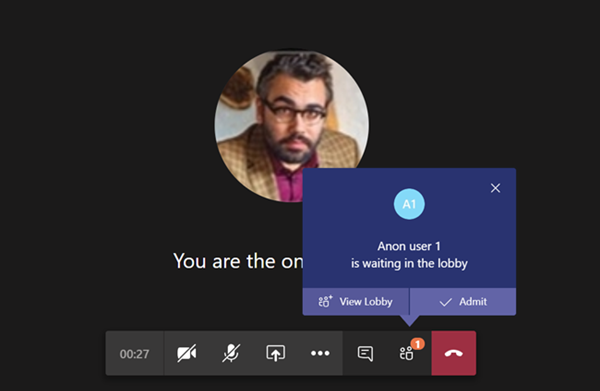
If this setting is turned off and an anonymous user joins the meeting
first and is placed in the lobby, an organization user must join the
meeting with a Teams client to admit the user from the lobby. There are
no lobby controls available for dialed in users.
Automatically admit people
This is a per-organizer policy. This setting controls whether people
join a meeting directly or wait in the lobby until they are admitted by
an authenticated user. This setting does not apply to dial-in users.
Meeting organizers can select Meeting Options in the meeting invitation to change this setting for each meeting they schedule.
Uwaga
In the meeting options the setting is labeled "Who can bypass the
lobby". If you change the default setting for any user, it will apply to
all new meetings organized by that user and any prior meetings where
the user didn't modify Meeting options.
Automatically admit people
Setting value
Join behavior
Everyone
All meeting participants join the meeting directly without waiting
in the lobby. This includes authenticated users, external users from
trusted organizations (federated), guests, and anonymous users.
People in my organization, trusted organizations, and guests
Authenticated users within the organization, including guest users
and the users from trusted organizations, join the meeting directly
without waiting in the lobby. Anonymous users wait in the lobby.
People in my organization and guests
Authenticated users from within the organization, including guest
users, join the meeting directly without waiting in the lobby. Users
from trusted organizations and anonymous users wait in the lobby. This
is the default setting.
Organizer only
Only meeting organizers can join the meeting directly without
waiting in the lobby. Everyone else, including authenticated users
within the organization, guest users, users from trusted organizations
and anonymous users must wait in the lobby.
People in my organization
Authenticated users from within the organization, excluding guest
users, join the meeting directly without waiting in the lobby. Guests
and users from trusted organizations and anonymous users wait in the
lobby.
Allow dial-in users to bypass the lobby
This is a per-organizer policy. This setting controls whether people
who dial in by phone join the meeting directly or wait in the lobby
regardless of the Automatically admit people setting.
By default, this setting is turned off. When this setting is turned off,
dial-in users will wait in the lobby until an organization user joins
the meeting with a Teams client and admits them. When this setting is
turned on, dial-in users will automatically join the meeting.
Uwaga
If you change the default setting for any user, it will apply to all
new meetings organized by that user and any prior meetings where the
user didn't modify Meeting options.
Allow team members to bypass the lobby
Meeting policies have a setting for letting team members bypass the
meeting lobby. We've added the EveryoneInCompanyExcludingGuests option
for people in the organization to bypass the lobby but exclude guest
users from bypassing the lobby.
Enable live captions
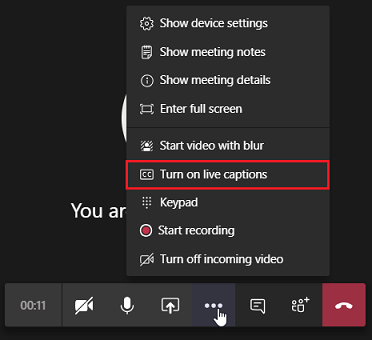
This is a per-user policy and applies during a meeting. This setting controls whether the Turn on live captions option is available for the user to turn on and turn off live captions in meetings that the user attends.
Enable live captions
Setting value
Behavior
Disabled but the user can override
Live captions aren't automatically turned on for the user during a meeting. The user sees the Turn on live captions option in the overflow (...) menu to turn them on. This is the default setting.
Disabled
Live captions are disabled for the user during a meeting. The user doesn't have the option to turn them on.
Allow chat in meetings
This is a per-participant setting. This setting controls whether meeting chat is allowed in the user's meeting.
Meeting policy settings - Designated presenter role mode
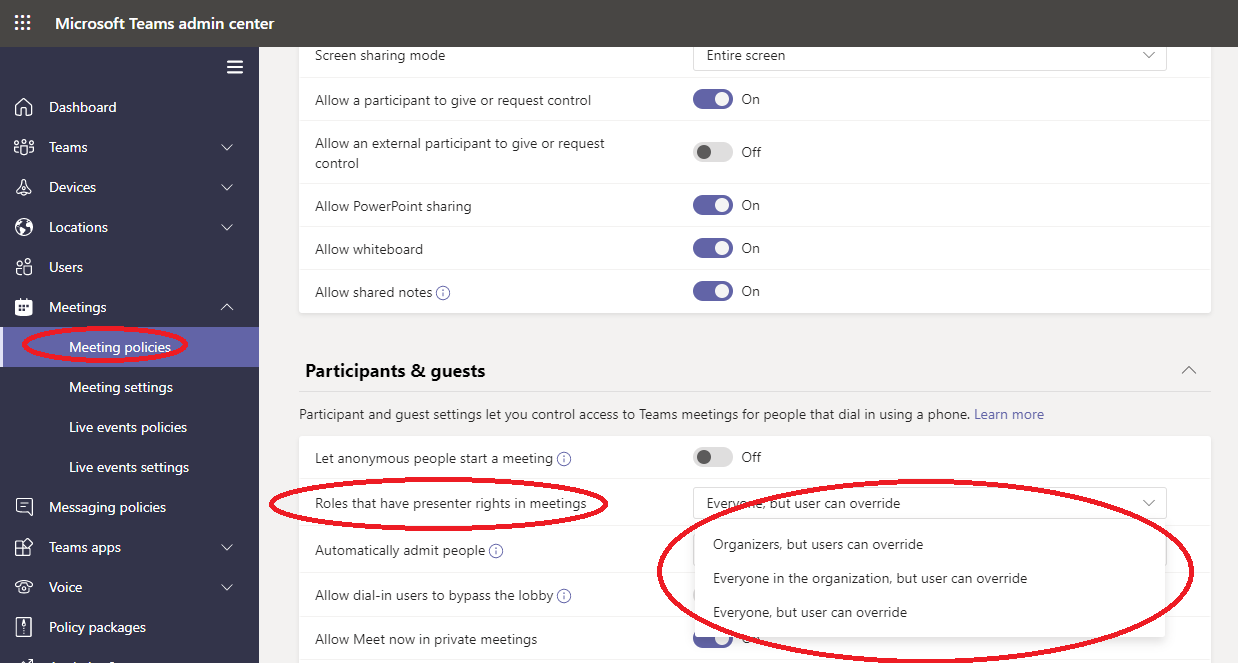
This is a per-user policy. This setting lets you change the default value of the Who can present? setting in Meeting options in the Teams client. This policy setting affects all meetings, including Meet Now meetings.
You can edit an existing Teams meeting policy by using the Set-CsTeamsMeetingPolicy cmdlet. Or, create a new Teams meeting policy by using the New-CsTeamsMeetingPolicy cmdlet and assign it to users.
To specify the default value of the Who can present? setting in Teams, set the DesignatedPresenterRoleMode parameter to one of the following settings:
EveryoneUserOverride: All meeting participants can be presenters. This is the default value. This parameter corresponds to the Everyone setting in Teams.
EveryoneInCompanyUserOverride: Authenticated users in the organization, including guest users, can be presenters. This parameter corresponds to the People in my organization setting in Teams.
OrganizerOnlyUserOverride: Only the meeting
organizer can be a presenter and all meeting participants are designated
as attendees. This parameter corresponds to the Only me setting in Teams.
Additionally, you can edit this policy in the Teams admin center.
Keep in mind that after you set the default value, meeting organizers
can still change this setting in Teams and choose who can present in
the meetings that they schedule.
This is a per-user policy. This setting controls whether meeting organizers can download the meeting attendance report.
Currently, you can only use PowerShell to configure this policy
setting. You can edit an existing Teams meeting policy by using the Set-CsTeamsMeetingPolicy cmdlet. Or, create a new Teams meeting policy by using the New-CsTeamsMeetingPolicy cmdlet and assign it to users.
To enable a meeting organizer to download the meeting attendance report, set the AllowEngagementReport parameter to Enabled. When enabled, the option to download the report is displayed in the Participants pane.
To prevent a meeting organizer from downloading the report, set the parameter to Disabled. By default, this setting is disabled and the option to download the report isn't available.
Meeting policy settings - Meeting provider for Islands mode
This is a per-user policy. This setting controls which Outlook meeting add-in is used for users who are in Islands mode.
You can specify whether users can only use the Teams Meeting add-in or
both the Teams Meeting and Skype for Business Meeting add-ins to
schedule meetings in Outlook.
You can only apply this policy to users who are in Islands mode and have the AllowOutlookAddIn parameter set to True in their Teams meeting policy.
Currently, you can only use PowerShell to set this policy. You can edit an existing Teams meeting policy by using the Set-CsTeamsMeetingPolicy cmdlet. Or, create a new Teams meeting policy by using the New-CsTeamsMeetingPolicy cmdlet and assign it to users.
To specify which meeting add-in you want to be available to users, set the PreferredMeetingProviderForIslandsMode parameter as follows:
Set the parameter to TeamsAndSfB to enable both the Teams Meeting add-in and Skype for Business add-in in Outlook. This is the default value.
Set the parameter to Teams to enable only the Teams
Meeting add-in in Outlook. This policy setting ensures that all future
meetings have a Teams meeting join link. It doesn't migrate existing
Skype for Business meeting join links to Teams. This policy setting
doesn't affect presence, chat, PSTN calling, or any other capabilities
in Skype for Business, which means that users will continue to use Skype
for Business for these capabilities.
If you set the parameter to Teams, and then switch back to TeamsAndSfB, both meeting add-ins are enabled. Existing Teams meeting join links won't
be migrated to Skype for Business. Only Skype for Business meetings
scheduled after the change will have a Skype for Business meeting join
link.
Meeting policy settings - Video filters mode
This is a per-user policy. This setting controls whether users can customize their video background in a meeting.
Currently, you can only use PowerShell to set this policy. You can edit an existing Teams meeting policy by using the Set-CsTeamsMeetingPolicy cmdlet. Or, create a new Teams meeting policy by using the New-CsTeamsMeetingPolicy cmdlet, and then assign the policy to users.
To specify whether users can customize their video background in a meeting, set the VideoFiltersMode parameter as follows:
Meeting policy settings - Video filters mode
Setting value in PowerShell
Behavior
NoFilters
User can't customize their video background.
BlurOnly
Users can blur their video background.
BlurandDefaultBackgrounds
User has the option to blur their video background or choose from the default set of images to use as their background.
AllFilters
User has the option to blur their video background, choose from the
default set of images, or upload custom images to use as their
background.
Ważne
Images uploaded by users aren't screened by Teams. When you use the AllFilters
setting, you should have internal organization policies to prevent
users from uploading offensive or inappropriate images, or images your
organization don't have rights to use for Teams meeting backgrounds.
Uwaga
These features are not available for all Teams clients. For more information, see the Video and backgrounds title in Meetings and live events.
Meeting policy settings - Meeting reactions
The AllowMeetingReactions setting can only be applied using
PowerShell. There is no option to toggle AllowMeetingReactions on or off
from the Teams admin center.
Meeting reactions are Off by default. Turning off reactions for a
user doesn't mean that a user can't use reactions in meetings they
schedule. The meeting organizer can still turn on reactions from the
meeting option page, regardless of the default setting.
Udostępnia
przewodniki dotyczące rozwiązywania problemów z nagrywaniem spotkań. Na
przykład brakuje przycisku nagrywania spotkania lub link do nagrywania
spotkania nie jest dołączony ani widoczny na czacie.